

Understanding Processes
A business process shows who completes which task in which order, and which events, conditions and decisions determine the flow.
Processes represent tasks in a particular order and with particular dependencies. The tasks are described briefly. An event starts the process, other events influence its course and end a process. Branches and merges in the flow of the process are represented by what are known as gateways.
The usual forms of representation for processes are flow diagrams using the “Business Process Model and Notation” (BPMN) notation, or process lists that represent the conditional sequence of the tasks with the help of corresponding references.
Bpanda helps you understand every process with both forms of representation, and additionally with a Guide that leads you reliably through the process diagram and explains the symbols as it does so.
You are also shown all the other people involved with the process, that is the Process Owner and other participants.
To help you understand processes, Bpanda provides the following support on every process page.
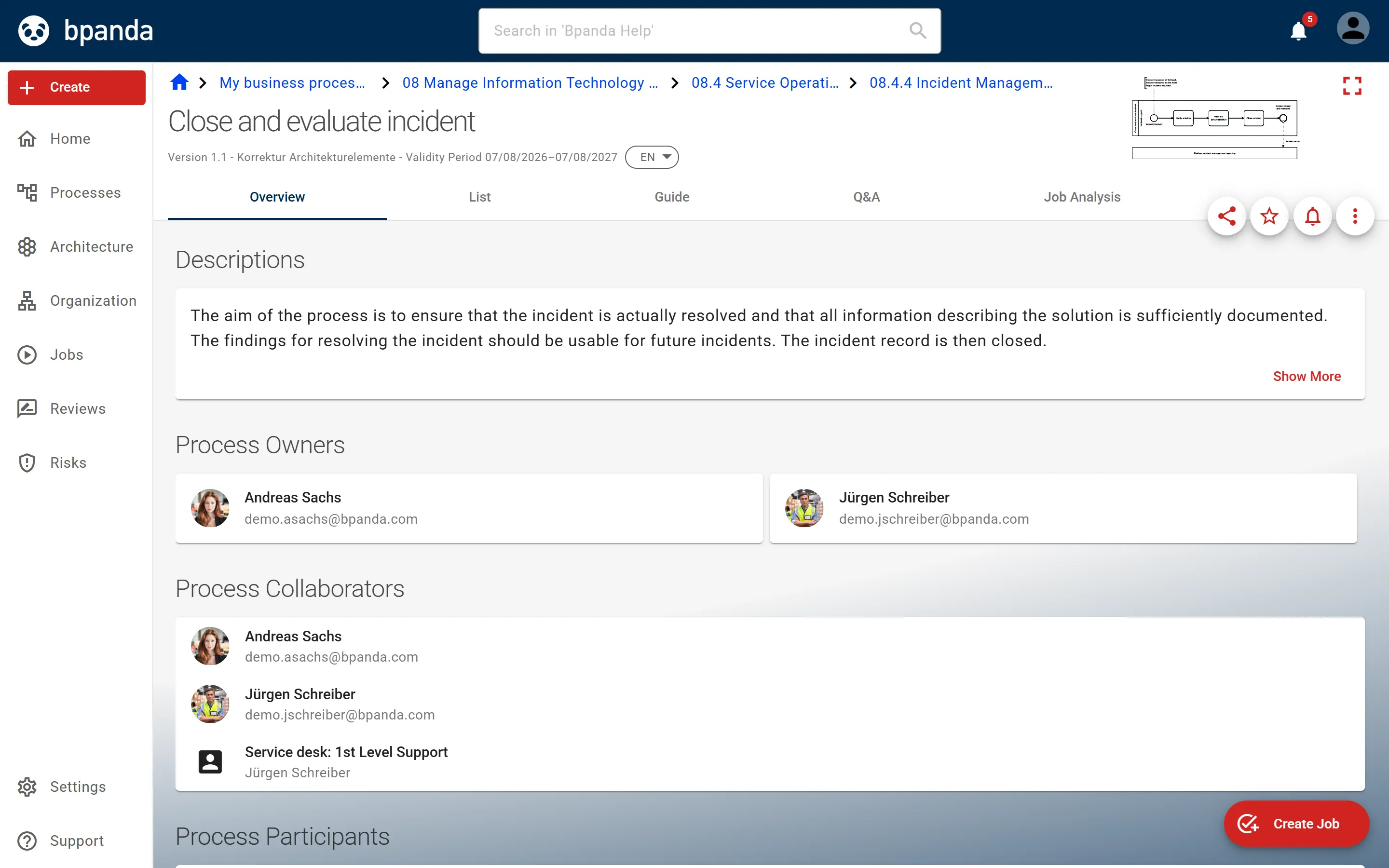
- Important information about the process is displayed at the top of the process page: hierarchical classification, version details, validity and status. In addition, the process diagram can always be opened in full screen and viewed at different sizes using the mouse wheel or the buttons.
- Below this, tabs provide access to particular forms of representation of the process and to detailed information. An icon menu lets you add the process to your favourites, activate notifications about process changes and use ⋮ to access general and role-dependent functions.
- The Overview shows the process description, the attachments to the process (documents, links and videos) and the people involved with the process.
- The List offers a tabular representation of the process flow as an alternative to the diagram. You can use filters to make it clearer.
- The Guide lets you navigate step by step through the process and shows you the description of the process elements and the explanation of the process symbols.
- If questions still remain, you can ask them under Q&A. Here you will also find the questions of other Process Users and can mark them as interesting. You will find the answers here too and can mark them as helpful.
- You can easily create direct process or diagram links and share them with your colleagues. When doing so, specify whether the link should always lead to the currently valid process version or to a particular version or revision.
- At the bottom right you can create jobs for the process if the process meets the prerequisites for this, see Creating a job. If it does not — because, for example, it contains unsupported elements — the Create Job button shows a warning triangle. Clicking the button opens the No job can be created for the underlying process dialog with the reasons.
- If you are a subject matter expert for particular processes, the Process Owner can assign you as a Process Contributor. Your task is then, in particular, to provide information about the process. This can be attachments to the process or answers to questions from Process Users.
See also: How you participate, Adding attachments