

Manage Processes
The Manage Processes page shows the status of all processes in the Process Space on the Dashboard tab and provides the corresponding bulk actions on the Actions tab.
On the Dashboard tab, you can see how the processes in the Process Space are doing — what is about to expire, what is not assigned to any level, what has been hidden. On the Actions tab, you then carry out the appropriate change for many processes at once instead of opening each process individually.
You can reach it in the main menu via Processes > Manage Processes. It is available to BPM Managers, Risk Managers and everyone who is responsible for at least one process; read-only users do not see the entry. Which actions you see on the Actions tab depends on whether you are a BPM Manager, Risk Manager or Process Owner. This is described in the section Structure of the Actions tab.
What is the Dashboard tab used for?
- The processes in the Process Space and their status are presented together in overviews.
- For example, you can see which processes will expire soon, which are not assigned to any level and which have the most participants.
Structure of the Dashboard tab
The tab shows tiles and charts, among other things on processes that will expire in the next twelve months, on expired processes with and without a new draft, and on processes without assignment to the process hierarchy.
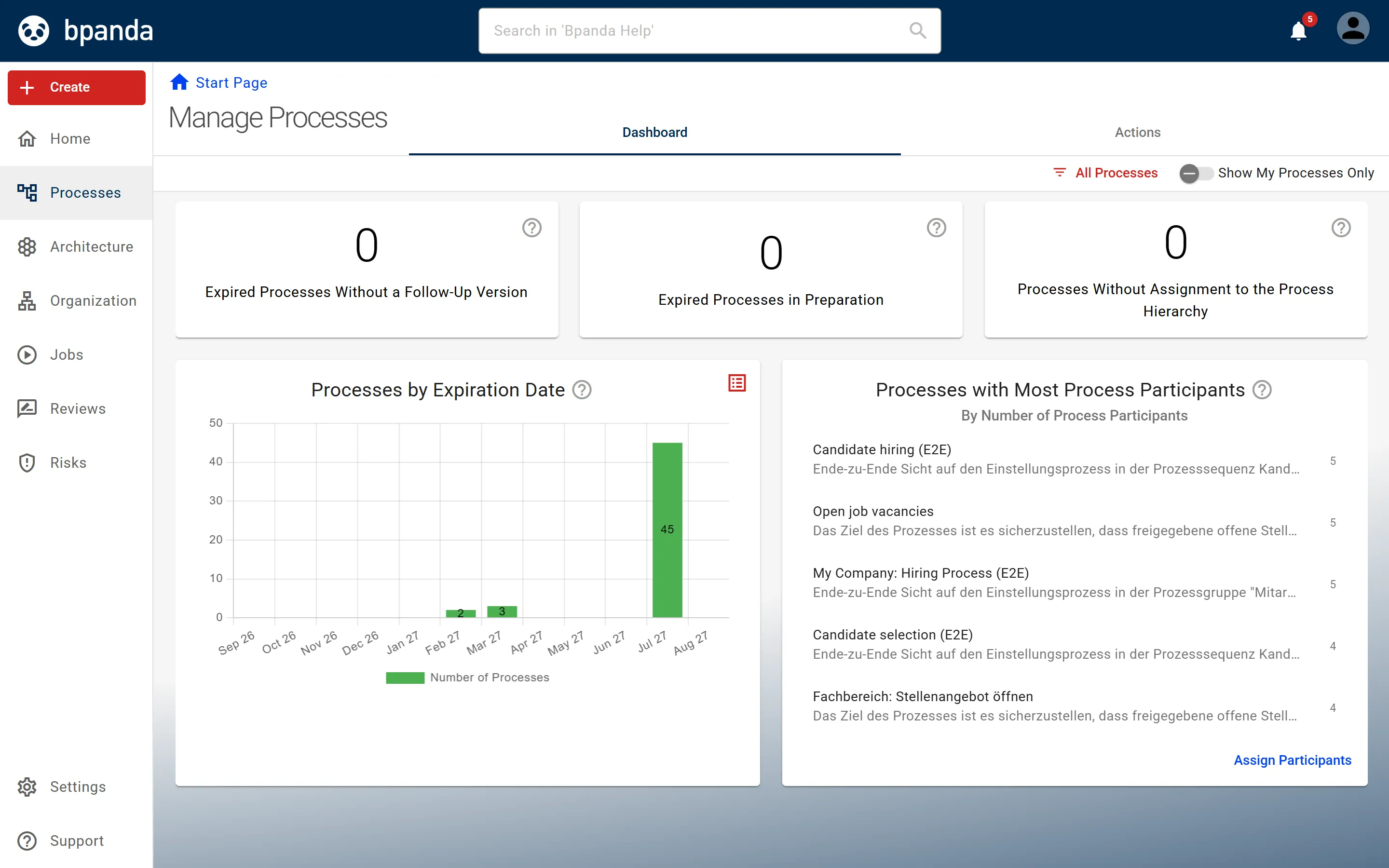
The information is clickable and shows the corresponding detailed information in tables or on the respective process pages.
You can click charts whose symbol is highlighted or that carry a link; they then show the overall information in detail.
The Back button takes you from the tables back to the dashboard.
The Filter lets you narrow down the processes under consideration.
-
Processes by expiry date
Shows a bar chart with the number of processes that will expire in the respective month and do not yet have a subsequent version. The chart covers the next twelve months.
By clicking the bars, you can check the processes and extend their validity if necessary.
-
Processes without assignment to the process hierarchy
Shows the number of processes that are not assigned to any level of the process hierarchy.
By clicking the tile, you can view these processes and place them in the process hierarchy — see Assign several processes.
-
Hidden processes
Shows the number of hidden processes.
By clicking the tile, you can view these processes and show them again if required — see Hide or show processes.
-
Expired processes without subsequent version
Shows the number of processes that have already expired and for which there is not yet a new process draft or new process revision.
By clicking the tile, you can view the affected processes and extend their validity if necessary — see Adjust validity.
-
Expired processes in preparation
Shows the number of processes that have already expired but for which a new process draft or a new unpublished process revision already exists.
By clicking the tile, you can view the affected processes and extend their validity if necessary.
-
Processes with the most Process Participants
Shows the processes with the most Process Participants. These are users, groups, organisational units and/or roles that are assigned to a process lane.
In the table view, you can view the assignments in detail and edit them.
Structure of the Actions tab
The Actions tab groups the bulk actions into four tiles. Which actions you see depends on your role: BPM Managers see all of them, Process Owners those for their own processes. Assign processes to a process level is reserved for BPM Managers, Publish risk analyses for Risk Managers.
-
Releases tile
- Run the release process — release several process revisions at the same time, provided they have the same release process and are at the same release step. See Run the release process for several revisions.
- Adjust validity — adjust the validity period for currently valid, expired or future process versions that do not yet have a subsequent version. See Adjust validity.
- Create reviews — create reviews for several published process revisions. See Create reviews for several processes.
- Publish risk analyses — publish ongoing risk analyses for several processes. See Publish several risk analyses.
-
Assignment and Visibility tile
- Assign processes to a process level — assign several processes to the same level in the process hierarchy. See Assign several processes.
- Hide processes — hide several processes so that they are no longer visible to any user. See Hide or show processes.
- Show processes — show hidden processes again. See Hide or show processes.
-
Roles and Permissions tile
- Assign Process Owners — assign users as owners to several processes. See Appoint Process Owners for several processes.
- Assign Process Contributors — assign users, groups and/or organisational units as contributors to several processes. See Appoint Process Contributors for several processes.
- Block process access — block several processes for users, groups and/or organisational units. See Appoint blocked users for processes.
- Assign Process Participants — assign users, groups and/or organisational units as participants to the lanes of several process revisions. See Appoint Process Participants for several process revisions.
-
Export Process Data tile
- Export process revisions — the most important data on the revisions of your processes as a CSV file. See Export process revisions.
- Export process responsibilities (lanes) — the most important data on the responsibilities (lanes) of your processes as a CSV file. See Export process responsibilities (lanes).
Each action opens a page with a sortable and filterable table that may extend over several pages. The filters narrow the view down to the relevant entries; for this there are, among others, the filter values not set for the Process Level and User columns and latest for the Revision column.
The selections are retained even if the entries concerned are filtered out. The number of current selections is shown in the button for executing the action.